


Streamlabs: Live Streaming
3.45.81K Reviews
App Specs
- Version
- 3.19.4
- Updated On
- License
- Free
- Downloads
- 10,000,000+
- Developer
- Logitech Europe S.A.
- Categories
- Video Players & Editors
- Platform
- Android, iOS
Screenshots
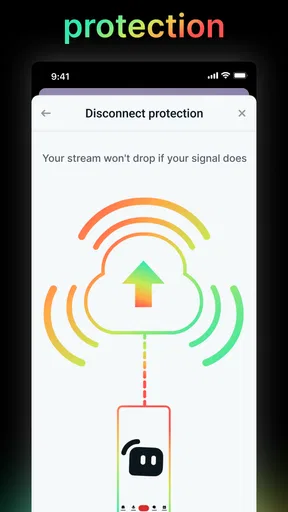
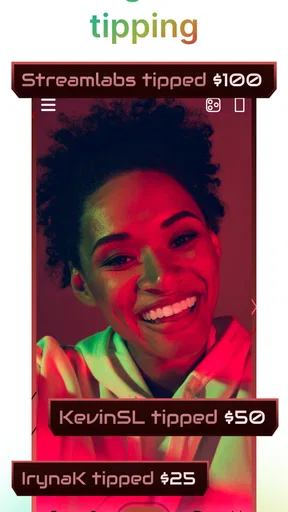
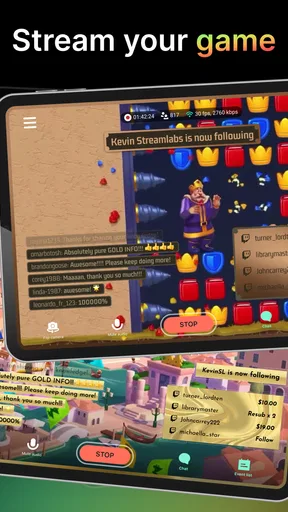
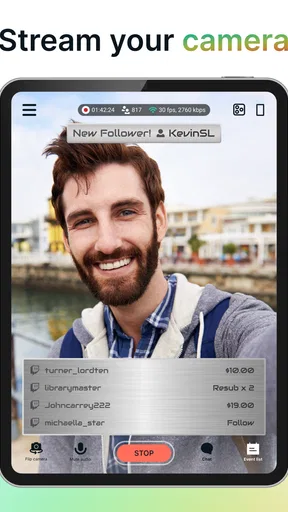
 Analysis by AppCompare
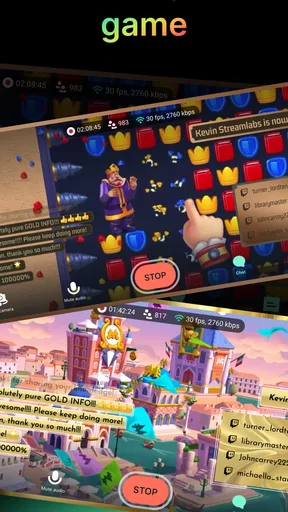
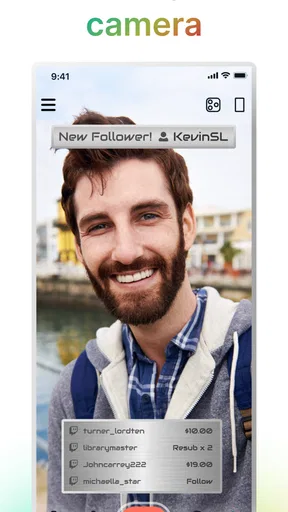
I find mobile streaming most useful when it removes enough setup friction to help me start on time, without pretending a phone can replace every part of a desktop studio. Streamlabs: Live Streaming is built for broadcasting from a mobile device, whether I want to show gameplay or use the camera, and it brings several creator tools into one app. That makes it worth considering if you want to go live without first assembling a complicated production setup.
A practical baseline for going live
My preferred way to approach a new streaming app is to treat the first session as a rehearsal, not a performance. I would connect the service I plan to use, check what the stream will show, and run through the opening steps before inviting viewers. A short practice session helps expose awkward choices—such as whether the camera framing works or whether I can keep up with chat—while there is little pressure to fix them.
That habit matters especially on a phone. A mobile broadcast asks one device to handle the content, the controls and, often, audience interaction. I would keep the first setup simple: choose one platform, one clear subject and only the on-screen elements that help viewers understand what is happening. Once the basic routine feels comfortable, it is easier to decide whether overlays or alerts improve the stream rather than just making the screen busier.
Choose the right kind of session
The app suits different formats, but I would not approach every one in the same way. A camera-led chat benefits from a steady view and attention to the conversation. A gameplay stream has a different priority: viewers need to see the action clearly, and the streamer needs a way to keep track of messages without losing focus. Before going live, I would decide which of those jobs matters most and avoid adding production details that compete with it.
A realistic use case is a creator who has a spare half-hour after work and wants to share a quick mobile game session with a small community. A repeatable routine—check the destination, confirm the framing or game view, glance at the connection, then begin—can make that short window feel manageable. If the stream is important or carefully produced, I would rehearse longer and use a more controlled setup rather than assuming that a phone app alone will solve every production challenge.
Getting Started with Streamlabs
So, you've decided to give Streamlabs: Live Streaming a whirl. The first thing you'll notice when you fire up the app is how user-friendly it is. Seriously, it’s like they designed it with both newbies and seasoned streamers in mind. The setup process is a breeze. Just a few taps, and you're ready to broadcast your epic gameplay or creative content to the world.
Features That Shine
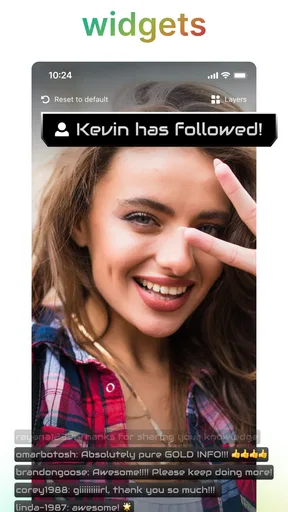
Streamlabs comes packed with a ton of features that make streaming not just possible, but downright enjoyable. One of my favorites has to be the customizable overlays. Whether you want to add a personal touch with your own graphics or choose from pre-made templates, the options are endless. It’s like having a mini production studio right in your pocket.
Worth Reading Before You Choose

EA SPORTS FC Mobile 26 Is a Bigger Football Game, but It Takes Time

Flipboard Shows What News Apps Must Do Beyond the Feed

Switching to Android Auto Means Rethinking Your Driving Routine

Google Calendar Makes a Crowded Week Easier to Manage

Ludo King Makes the Most of the Minutes Between Plans

Baby Panda World Brings Quick Play to Modern Phones, but Its Game Library Feels Busy
And let's talk about the alerts. They are pure gold! You can set up alerts for new followers, donations, subscriptions, you name it. It’s a fantastic way to interact with your audience and keep them engaged. Plus, the excitement of seeing those alerts pop up during a stream is unmatched.
Settings that deserve a second look
Even a quick setup is easier to trust when I slow down for a few checks. I would review the selected streaming destination before each session, particularly if I switch between Twitch, YouTube, Facebook or another supported service. I would also check whether the overlay leaves the important part of the game or camera view visible. A graphic can look attractive in a preview and still cover the action once the real content fills the screen.
Alerts need a similar bit of restraint. They can help acknowledge viewers, but a constant stream of visual activity can distract from what I am saying or playing. I would start with only the alerts that fit the format, then adjust after watching a recording or asking a trusted viewer what they actually noticed. This is a useful trade-off: audience recognition is valuable, but keeping the main content readable comes first.
For camera sessions, I would check the background and framing before worrying about decoration. For gameplay, I would make sure the overlay does not obscure essential interface elements. These are small checks, but they are more useful than adding several layers at once and discovering during a live broadcast that the screen feels crowded.
Performance and Usability
Now, I've used a few streaming apps in my time, and I have to say, the performance on Streamlabs is top-notch. Streaming in high definition is smooth, with minimal lag. Of course, this does depend on your internet connection, but assuming that's solid, you'll be golden.
The app's interface is intuitive and clutter-free, which makes navigation a breeze. You can easily access all the tools you need without fumbling around, which is crucial when you're live and need to make quick adjustments.
Build a repeatable routine, not a complicated show
Experienced streamers often get speed from consistency rather than from adding more controls. I would use the same pre-stream order each time: confirm the platform, check the visible layout, make sure the topic or game is ready, and take one final look at the connection before starting. When I finish, I would note one thing to improve next time instead of trying to redesign everything after every session.
That approach is particularly helpful if I use the app for both camera and gameplay broadcasts. A small checklist can catch a wrong destination or an overlay that suits one format but not the other. It also reduces the temptation to make last-minute changes while viewers are waiting. The aim is not to eliminate spontaneity; it is to save attention for the content once the stream begins.
I would also decide in advance how much chat I can realistically manage. If I am talking to camera, checking messages may be part of the format. If I am playing something that demands concentration, trying to answer every message immediately could make the stream worse. A clear rhythm—play for a while, pause at a natural point, then catch up—can feel more welcoming than constantly dividing attention.
Engaging with Your Audience
Engagement is a key part of streaming, and Streamlabs has you covered. The chat feature is seamless, allowing you to interact with your viewers in real-time. You can manage your chat directly from the app, making it easier to keep the conversation going while you focus on your content.
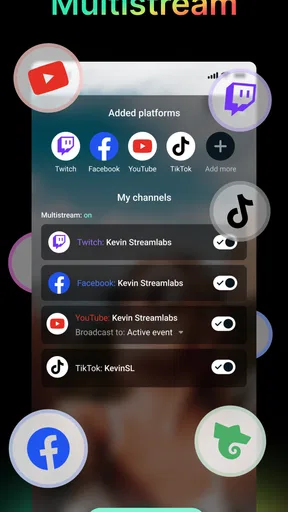
Plus, the app integrates smoothly with platforms like Twitch, YouTube, and Facebook, so you can easily reach your audience wherever they are. This cross-platform integration is a real game-changer.
Where a phone-based workflow reaches its limits
Keeping chat, content and stream controls in view on one device is convenient, but it is also a real compromise. Every interruption can pull attention away from the game or conversation. If I were presenting a tutorial that depends on precise screen actions, or running a carefully timed show with several sources, I would compare this mobile workflow with desktop broadcasting software. A larger workspace and more dedicated controls can be the better fit when production complexity matters more than portability.
Streamlabs is also not the right choice for someone who only wants to record a clip and edit it later. A live-streaming app is aimed at broadcasting and interacting in the moment; a conventional video editor is a better match for trimming footage, arranging scenes after recording or polishing a finished video. Likewise, a basic camera app is simpler if all I need is a straightforward recording with no live audience or streaming setup.
Connection quality is another practical limit. A smooth session depends on the network available where I am, so I would not assume that changing the app’s layout can compensate for an unstable connection. For a stream that cannot tolerate interruptions, I would test the location first or choose a more dependable network before promising viewers a start time.
Monetization and Growth
For those looking to turn their streaming into a source of income, Streamlabs provides some great monetization options. From setting up a donation page to creating a merch store, the app offers various ways to support your streaming journey financially. It’s like having a built-in business model!
Streamlabs also offers detailed analytics, so you can track your growth and adjust your strategies accordingly. Whether you’re just starting out or looking to boost your viewership, these insights are invaluable.
What to expect before committing
The app is free to download, and its content rating is Everyone. It is developed by Logitech Europe S.A. and sits in the video-player and editing space, though its main appeal is live broadcasting rather than post-production. The current version is 3.16.2. Optional in-app purchases range from $0.99 to $189.99 per item, so I would look carefully at any paid option before spending; the free starting point is enough to decide whether the mobile workflow suits me.
Its audience is substantial: it has more than 10 million installs, with an average rating of 3.5 from around 116,000 ratings and about 5,700 written reviews. I take that as a reason to try it with realistic expectations, not as proof that every stream will be effortless. Streaming apps are sensitive to device, network and personal workflow, so my own short test is more informative than popularity alone.
If you are wondering whether you need to pay to begin, the app itself is free, while optional purchases are available. If you are unsure which platform to use, I would choose the one where my intended viewers already spend time rather than trying to reach everyone at once. And if you are deciding between this and a desktop tool, the key question is whether portability and a compact mobile setup matter more to you than a wider, more controlled production workspace.
Final Thoughts
All in all, Streamlabs: Live Streaming is a powerhouse of a tool for anyone serious about streaming. Its robust features, ease of use, and engaging capabilities make it a must-have for both beginners and pros alike.
If you're ready to take your live streaming to new heights, I highly recommend giving Streamlabs a try. It's more than just an app; it's a complete streaming solution that can help you create, connect, and grow. So, what are you waiting for? Hit that download button and let's get streaming!
My verdict after weighing the workflow
I would recommend it most to creators who want to go live from a phone, value quick access to chat and audience tools, and are willing to build a simple routine around each broadcast. The overlays, alerts and platform options make the app more useful than a barebones camera stream, especially once I know which elements actually serve my format.
I would skip it if I need detailed scene control, prefer editing recorded footage, or do not want to monitor a live audience while creating. Its 3.5 average rating reflects a mixed reception, so I would start with a low-stakes test rather than make it the foundation of an important event immediately. For casual, repeatable mobile broadcasts, though, it can be a practical tool—provided I keep the setup focused and accept the limits of working from one device.
Pros
- User-friendly interface
- easy setup
- Extensive customization options
- Supports multiple platforms
- High-quality video streaming
- Integrated chat and alerts
Cons
- Requires high bandwidth for smooth streaming
- Limited features on free version
- Can be resource-intensive
- Occasional connection issues
- Frequent updates needed
FAQs for Streamlabs: Live Streaming
What platforms are supported by Streamlabs: Live Streaming?
Streamlabs: Live Streaming is compatible with both Android and iOS devices, making it versatile for mobile users. Additionally, it supports streaming to popular platforms like Twitch, YouTube, and Facebook. This flexibility allows users to broadcast their content to a wide audience, regardless of their device or preferred streaming platform.
Is Streamlabs: Live Streaming free to use?
Streamlabs offers a free version with essential features for live streaming. However, for those seeking enhanced capabilities, there is a premium subscription known as Streamlabs Prime. This includes additional features such as custom overlays, multistream capabilities, and more, aimed at providing a more professional streaming experience.
What are the system requirements for Streamlabs: Live Streaming?
To ensure optimal performance, Streamlabs: Live Streaming requires a device running Android 5.0 or later, or iOS 11.0 or later. It’s recommended to use a device with a strong internet connection and at least 2GB of RAM to handle the app’s functionalities smoothly, especially if streaming at higher resolutions.
Can I customize my stream with Streamlabs: Live Streaming?
Yes, Streamlabs provides a range of customization options. Users can personalize their streams with a variety of overlays, widgets, and alerts. These features allow streamers to create a unique and engaging viewing experience for their audience, setting them apart from others in the streaming community.
How user-friendly is Streamlabs: Live Streaming for beginners?
Streamlabs: Live Streaming is designed with a user-friendly interface, making it accessible for beginners. The app includes tutorial guides and a simple setup process, helping new users get started with little technical knowledge. The intuitive design ensures that even those new to live streaming can create professional-quality broadcasts.


